Turn On Screen Reader Support: Complete Guide for Windows, Android, iPhone and Mac
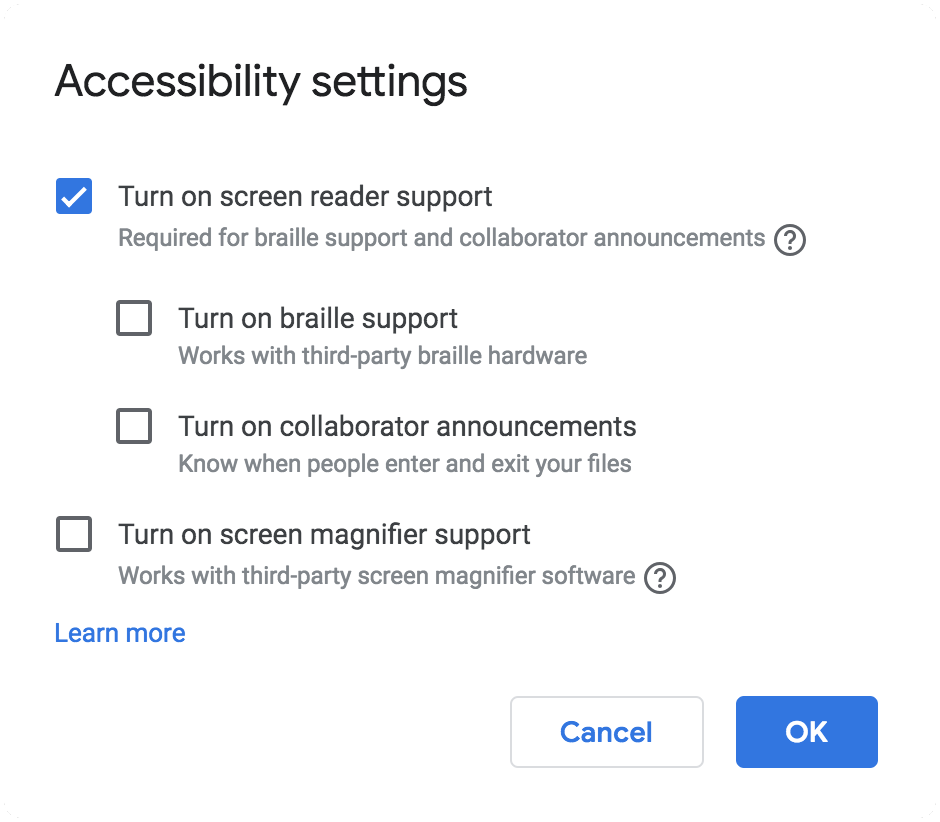
Turn on screen reader support is an essential accessibility feature that helps users interact with digital devices through spoken feedback. Screen readers are specialised assistive technologies that convert written content, menus, buttons, notifications, and other visual elements into audio descriptions. These tools allow people with visual difficulties to navigate computers, smartphones, tablets, and websites more independently while creating a more inclusive digital environment.
Accessibility has become an important part of modern technology because digital platforms are used for education, work, communication, shopping, and entertainment. When users turn on screen reader support, they gain access to features that make digital experiences easier and more flexible. Whether someone uses Windows, Android, iPhone, iPad, or Mac, built-in accessibility options provide practical solutions for improving device interaction.
What Is Screen Reader Support and How Does It Work?
Screen reader support is a technology feature that allows devices to read information displayed on a screen aloud. Instead of depending only on visual information, users receive spoken descriptions of text, icons, menus, links, and interactive elements. Screen readers analyse the structure of digital content and provide audio guidance that helps users understand and control their devices.
When people turn on screen reader support, the software communicates with the operating system and applications to identify important information. Users can move through pages, open programs, read documents, and browse websites using keyboard commands, touch gestures, or other accessibility controls. This technology helps create a smoother experience for individuals who require alternative methods of accessing digital information.
Screen readers are not only useful for people with visual impairments. Many users benefit from audio navigation when multitasking, learning new software, or requiring additional assistance with reading digital content. As websites and applications become more accessible, screen reader technology continues to improve the overall online experience.
How to Turn On Screen Reader Support on Windows Devices
Windows provides a built-in accessibility tool called Narrator, which allows users to hear descriptions of what appears on their computer screen. To turn on screen reader support on Windows, users can open accessibility settings and enable Narrator or use a keyboard shortcut for faster activation. This feature helps users navigate the operating system, manage files, read documents, and interact with applications.
Windows Narrator includes various customisation options designed to improve comfort and usability. Users can adjust voice speed, volume, language preferences, and navigation settings according to their requirements. These options allow individuals to create a personalised experience that matches their preferred way of interacting with their computer.
For users who need advanced functionality, Windows also supports additional screen reader software. These programs may provide extra tools for professional work, education, and specialised accessibility needs. Choosing the right solution depends on the user’s goals and the type of activities they perform on their computer.
How to Turn On Screen Reader Support on Android Phones and Tablets
Android devices include TalkBack, a powerful screen reader developed by Google. Users can turn on screen reader support on Android by accessing the Accessibility section in their device settings. Once activated, TalkBack provides spoken feedback about apps, buttons, text, notifications, and other elements displayed on the screen.
TalkBack allows users to control their devices through touch gestures and audio guidance. Instead of relying only on visual interaction, users can explore the screen by moving their fingers, selecting items, and using specific gestures to navigate menus and applications. This makes smartphones and tablets more accessible for everyday communication and digital tasks.
Android accessibility settings also provide options to customise TalkBack according to personal preferences. Users can adjust speech volume, reading speed, gesture controls, and shortcut options. These settings help create a comfortable experience and allow users to make the most of their device’s accessibility features.
How to Turn On Screen Reader Support on iPhone and iPad
Apple devices offer VoiceOver, one of the most advanced built-in screen readers available today. Users can turn on screen reader support on iPhone and iPad by opening Accessibility Settings and enabling VoiceOver. Apple also provides convenient activation methods through Siri commands and accessibility shortcuts.
VoiceOver helps users understand everything happening on their device by providing spoken descriptions of applications, images, buttons, and text. It uses unique gestures that allow users to navigate menus, read messages, browse websites, and interact with different apps without needing to view the screen.
Apple allows extensive customisation of VoiceOver settings to improve the user experience. Users can modify speech options, choose different voices, adjust reading speed, and personalise gesture controls. These features make iPhone and iPad devices highly adaptable for people who depend on assistive technology.
How to Turn On Screen Reader Support on Mac Computers
Mac computers include VoiceOver as a built-in accessibility feature designed to help users navigate macOS. Users can turn on screen reader support through System Settings or by using keyboard shortcuts. Once activated, VoiceOver provides spoken descriptions of files, menus, applications, and other elements on the computer.
VoiceOver on Mac supports a wide range of activities, including browsing websites, writing documents, managing files, and using professional applications. The feature works with keyboard commands and can also connect with compatible braille displays for users who prefer tactile feedback.
Customising Mac accessibility preferences allows users to create a more efficient workflow. Adjusting voice settings, navigation controls, and keyboard shortcuts can improve comfort and productivity. These options make Mac computers suitable for users who need reliable accessibility solutions.
Using Screen Reader Support With Websites and Online Content
Web accessibility plays a major role in ensuring that everyone can use online resources effectively. When websites are designed correctly, screen readers can identify headings, links, images, forms, and navigation menus more accurately. This allows users who turn on screen reader support to browse websites with fewer difficulties.
Website owners can improve accessibility by following good design practices. Clear headings, descriptive image descriptions, logical page structures, and keyboard-friendly navigation all help screen readers understand content properly. Accessible websites create better experiences not only for users with disabilities but also for all visitors.
Applications and digital platforms are also becoming more compatible with assistive technologies. Developers are focusing on creating software that works smoothly with screen readers, helping users access important services such as education platforms, online banking, communication tools, and workplace applications.
Common Screen Reader Problems and How to Fix Them
Some users may experience challenges after they turn on screen reader support. Common problems include incorrect settings, unfamiliar gestures, slow navigation, or compatibility issues with certain applications. These challenges can usually be solved by reviewing accessibility options and adjusting settings based on personal preferences.
Learning basic screen reader commands can significantly improve the user experience. Keyboard shortcuts, touch gestures, and navigation techniques allow users to move through digital content more efficiently. Practising these controls helps users become more comfortable and confident when using assistive technology.
Keeping devices updated is another important step for maintaining reliable screen reader performance. Software updates often include improvements, security fixes, and better compatibility with modern applications. Regularly checking accessibility settings ensures that users continue receiving the best possible experience.
Choosing the Right Screen Reader Option for Your Device
Different devices offer different screen reader solutions, and choosing the right option depends on personal needs and preferences. Windows users may prefer Narrator, Android users commonly use TalkBack, and Apple users often rely on VoiceOver. Each tool provides unique features designed to improve accessibility.
The best screen reader experience comes from understanding available settings and customising them properly. Users should explore voice options, shortcuts, navigation controls, and compatibility features to find the setup that works best for them.
As digital technology continues to develop, accessibility tools will become even more advanced. Learning how to turn on screen reader support today can help users enjoy greater independence and confidence when interacting with digital devices.
Conclusion
Understanding how to turn on screen reader support helps users access technology in a more convenient and inclusive way. Whether using Windows, Android, iPhone, iPad, or Mac, built-in accessibility features provide valuable tools for reading content, navigating applications, and completing everyday digital tasks.
Screen readers represent an important step towards a more accessible digital world. By enabling these features and learning how they work, users can improve their online experience, increase independence, and take full advantage of modern technology.
FAQs
What is screen reader support?
Screen reader support is an accessibility feature that reads digital information aloud and helps users navigate devices.
How do I turn on screen reader support on Windows?
You can enable Windows Narrator through Accessibility Settings or by using the keyboard shortcut.
How can I activate screen reader support on Android?
You can activate TalkBack from the Accessibility settings on your Android device.
How do I enable VoiceOver on an iPhone?
You can enable VoiceOver through iPhone Accessibility Settings, Siri, or accessibility shortcuts.
Do screen readers work with websites?
Yes, screen readers work with websites that follow accessibility practices such as clear headings and proper navigation.
You May Also Read: Carlow Map